Mac
Use this macOS guide to install RustDesk, allow the app to run, and grant the permissions needed for screen capture and input control.
What does RustDesk need on macOS?
RustDesk on macOS needs more than the app installation itself. To control another Mac correctly, you typically need to move the app into Applications, allow it to run, then grant Accessibility, Screen Recording, and in some cases Input Monitoring permissions.
macOS quick answers
- Install RustDesk from the
.dmgintoApplications. - Allow the app under macOS security settings if Gatekeeper blocks it.
- Grant
AccessibilityandScreen Recordingfor remote control. - Grant
Input Monitoringif keyboard or mouse input still does not work. - Reboot if permission resets do not take effect immediately.
Installation
Open the .dmg file and drag RustDesk to Applications as below.
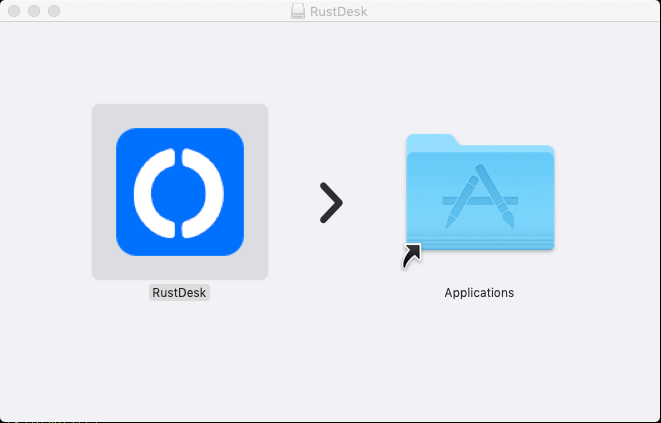
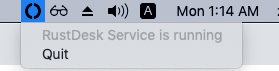
Make sure you have quit all running RustDesk. Also make sure you quit the RustDesk service shown on the tray.
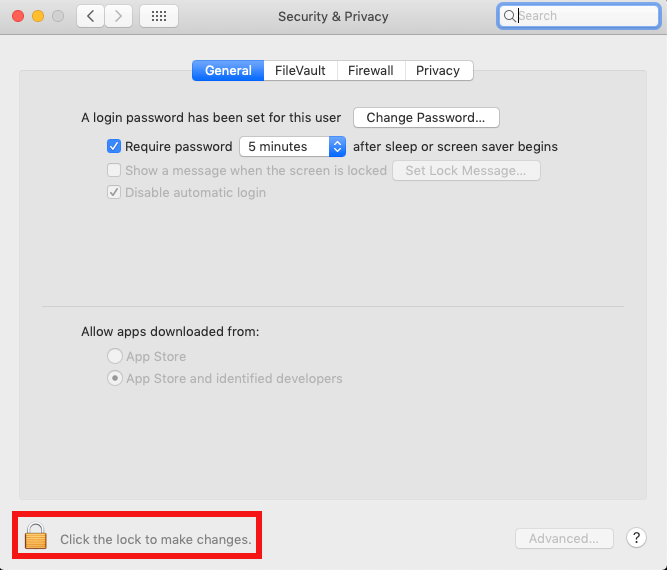
Allow RustDesk run
| Unlock to change | Click on App Store and identified developers |
|---|---|
 | 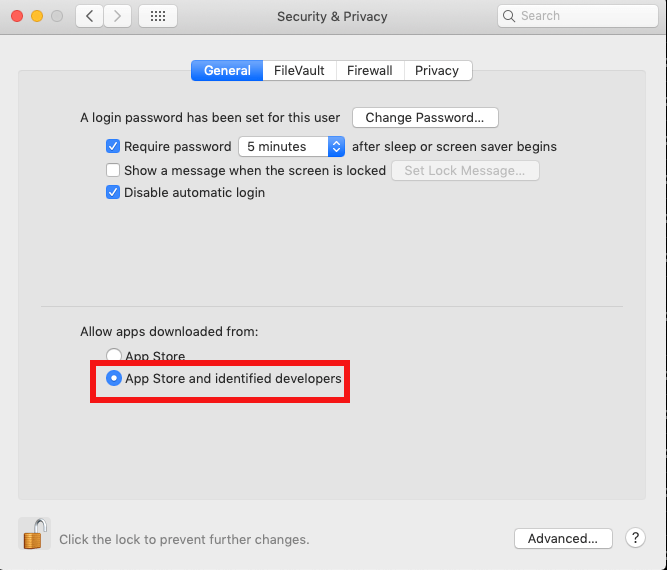 |
Which macOS permissions matter?
| Permission | Why it matters |
|---|---|
| Accessibility | Lets RustDesk control keyboard and mouse input |
| Screen Recording | Lets RustDesk capture the local display |
| Input Monitoring | Needed on newer macOS versions when local input capture still fails |
Enable permissions
Note
Due to macOS security policy change, our api which captures input on local side does not work any more. You have to enable “Input Monitoring” permission on local Mac side. Please follow this https://github.com/rustdesk/rustdesk/issues/974#issuecomment-1185644923.
In version 1.2.4, you can try out Input source 2 which can be seen by clicking on keyboard icon on the toolbar.
To capture screen, you need to grant RustDesk Accessibility permission and Screen Recording permission. RustDesk will guide you to the settings window.
| RustDesk window | Settings window |
|---|---|
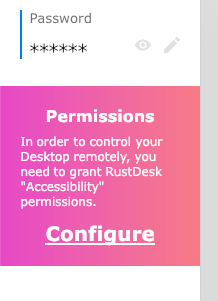 | 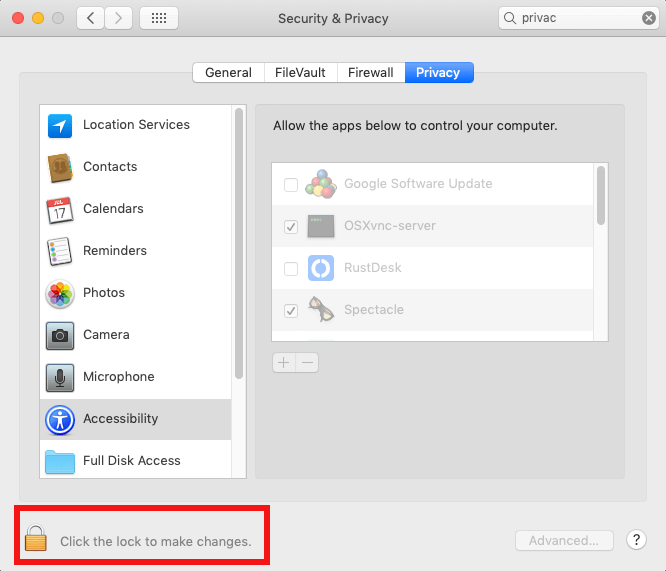 |
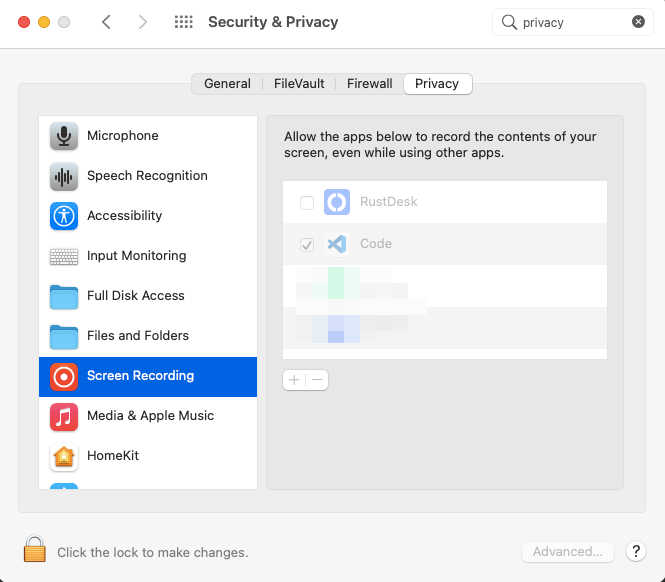
If you have enabled it in the settings window, but RustDesk still warns. Please remove RustDesk from the settings windows by the - button, and click on + button, select RustDesk in Applications.
Note
Other helpless attempts:
tccutil reset ScreenCapture com.carriez.RustDesktccutil reset Accessibility com.carriez.RustDeskReboot is still required.
- and + button | Select RustDesk |
|---|---|
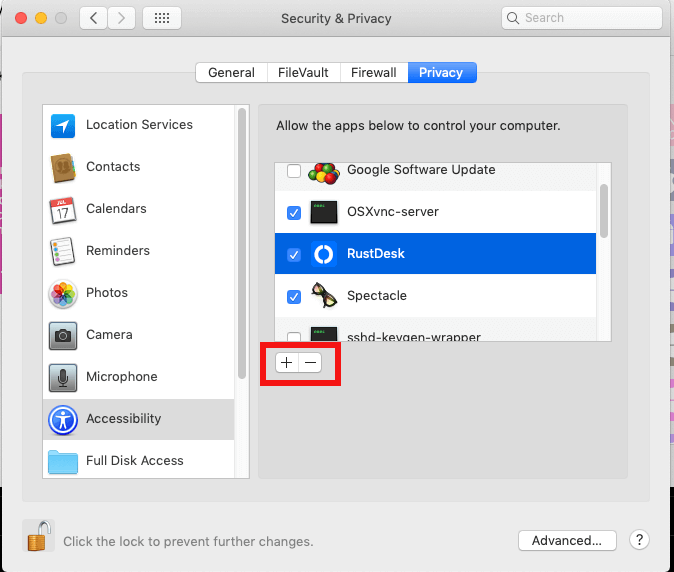 | 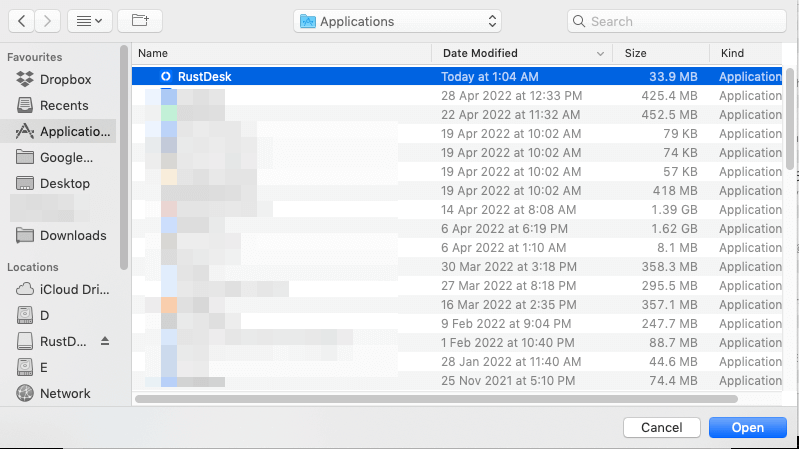 |
Please copy above steps for Screen Recording permission.