Control Role
Use Control Roles to define what a user is allowed to do during a remote session in RustDesk Server Pro.
Control Role allows you to configure remote control permissions for different users. When a user remotely controls another device, the Control Role defines what operations the controlling user is allowed to perform after a connection is established.
When should you use a Control Role?
Use a Control Role when you want to limit what an operator can do after connecting to a remote device. This is the right feature for decisions such as whether the operator can transfer files, use the clipboard, open a terminal, restart the remote device, or modify remote configuration.
Control Role quick answers
- Control Roles affect in-session actions after a connection is established
- They do not decide whether the connection is allowed in the first place
- Each user can have only one Control Role
- Control Role permissions can override local permission settings on the controlled device
- The built-in
Not LoggedandDefaultroles cover users without an assigned custom role
Note
Control Role vs Access Control vs Strategy
- Control Role: Determines what operations the controlling user is allowed to perform after a connection is established.
- Access Control: Determines whether a connection can be established between the controlling and controlled devices.
- Strategy: Modifies settings on the controlled device.
Requirements
- Controlled device: RustDesk 1.4.5 or above (Android controlled device is not supported yet)
- Controlling device: No version requirement
Permission Calculation
How Permissions Work
In short: Control permissions take priority over local settings.
There are two sources of permission settings:
- Local Settings on the controlled side: The controlled device’s settings (Settings → Security → Permissions)
- Control Permission: The controlling user’s Control Role permissions (configured in web console)
Each permission has three states:
- Use Client Settings: No override, use the controlled device’s local setting
- Enable: Explicitly enable this permission (overrides local setting)
- Disable: Explicitly disable this permission (overrides local setting)
Permissions are calculated at the session level:
| Control Permission | Local Settings | Result |
|---|---|---|
| Enable | Enable | Enable |
| Enable | Disable | Enable |
| Disable | Enable | Disable |
| Disable | Disable | Disable |
| Use Client Settings | Enable | Enable |
| Use Client Settings | Disable | Disable |
Special case: Remote Configuration Modification
When multiple controlling users are connected to the same device, the “Remote Configuration Modification” permission is calculated across all connections:
| All Connections’ Control Permission | Result |
|---|---|
| Any Disable | Disable |
| No Disable, Any Enable | Enable |
| All Use Client Settings | Use local setting |
Which Role Applies
Each user can only have one Control Role assigned. There are two built-in roles:
| Role | Description |
|---|---|
| Not Logged | For controlling users who are not logged in. Cannot be assigned to users. |
| Default | For logged-in controlling users who have no Control Role assigned, or are explicitly assigned to the Default role. |
The Control Role applied depends on the controlling user’s login status and role assignment:
| Controlling User Status | Assigned Role | Which Role / Role Status | Applied Control Role |
|---|---|---|---|
| Not logged in | - | Not Logged / Enabled | Not Logged |
| Not logged in | - | Not Logged / Disabled | - |
| Logged in | Has assigned role | Assigned role / Enabled | Assigned role |
| Logged in | Has assigned role | Assigned role / Disabled | - |
| Logged in | No assigned role | Default / Enabled | Default |
| Logged in | No assigned role | Default / Disabled | - |
Available Permissions
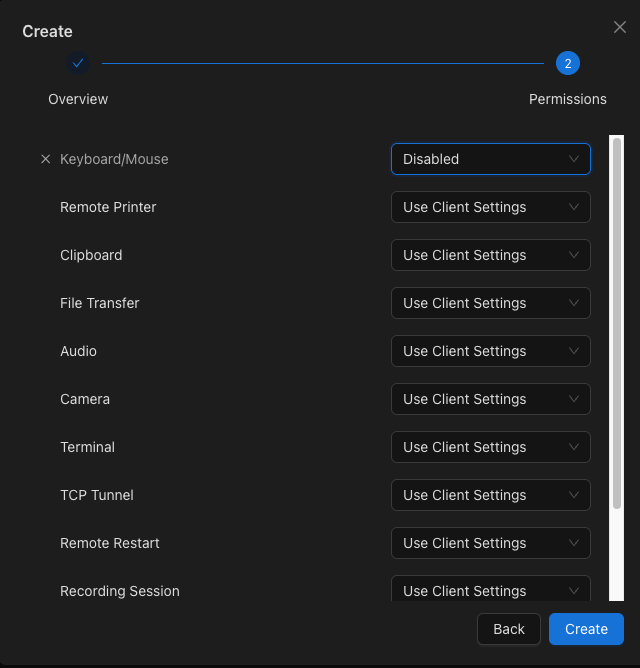
The 12 controllable permissions correspond to the controlled device’s Settings → Security → Permissions:
- Keyboard/Mouse
- Remote Printer
- Clipboard
- File Transfer
- Audio
- Camera
- Terminal
- TCP Tunnel
- Remote Restart
- Recording Session
- Block User Input
- Remote Configuration Modification
Console Operations
Creating a Role
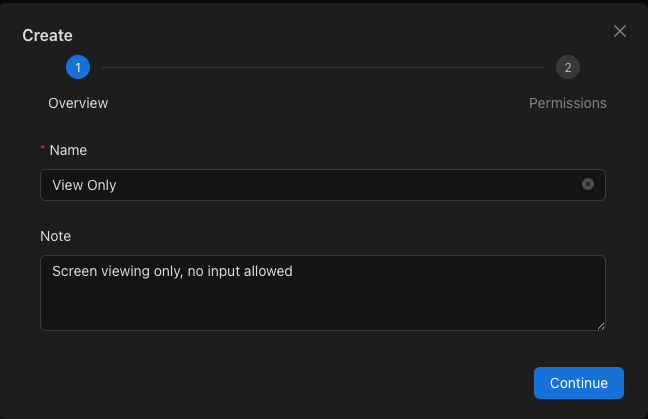
- Navigate to Control Roles page and click Create
- Enter a Name for the role
- Select the Permissions to grant
Role Assignment
There are two ways to assign Control Roles to users:
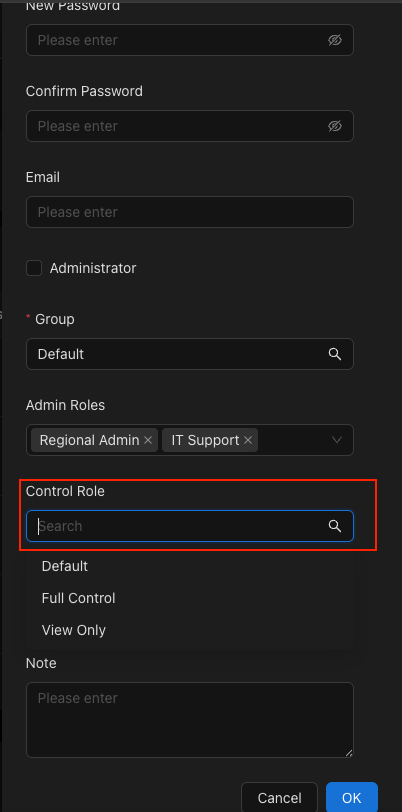
- Users page → Click Edit on a user → Select a role in the Control Role field
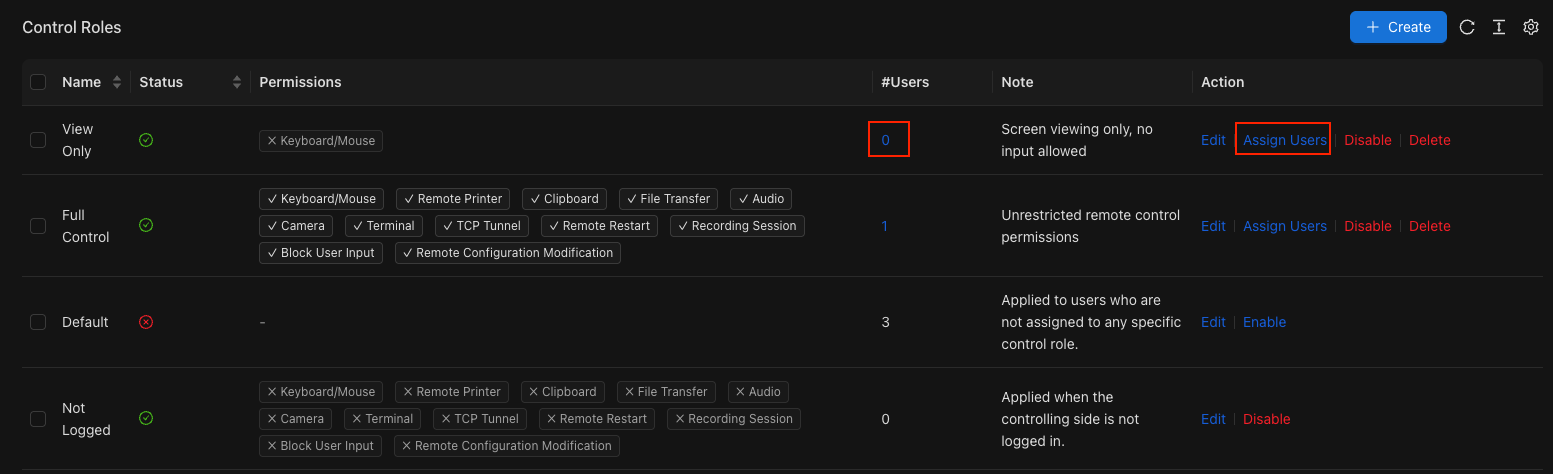
- Control Roles page → Click the user count or Assign Users → Add or remove users from the role
Note